

Say "deploy my demo" in Claude Code, and the environment gets provisioned, files uploaded, and the URL handed back — no console required.
That's a normal day with the CloudBase plugin installed. Codex, Claude Code, and WorkBuddy all support CloudBase Plugin natively: database, cloud functions, static hosting, and AI capabilities, all one sentence away in chat.
Getting in: it's a prompt
The recommended path is prompt-based. Copy this into your AI IDE and hit enter:
Set up CloudBase for me:
1. Open https://docs.cloudbase.net/skill.md and follow the instructions to connect.
2. When done, tell me and suggest the most relevant next step.
The AI handles installation and configuration itself — and tells you what to do next when it's done. Stuck? Ask it to teach you. Misconfigured? Ask it to fix it.
Prefer the terminal? One command
npx plugins add TencentCloudBase/cloudbase-plugin -y --scope user
The plugins CLI (Open Plugin Specification compatible) auto-detects every AI tool on your machine and sets them all up. Prefer this path — don't hand-write MCP JSON. Check detection anytime:
npx plugins targets
What your AI can do after that
The plugin bundles three things:
- MCP Server — "how many docs are in the users collection?" or "make this function run every minute" — executed right in chat
- Agent Skills — CloudBase best practices injected into the agent's skill library, so it knows instead of guessing
- Hooks — more reliable Skill activation, no flakiness
Compared to installing Skills alone, the plugin adds Hooks and activates more reliably — every integration should go through the plugin.
Supported AI IDEs
Pick your client for the install command and MCP config:
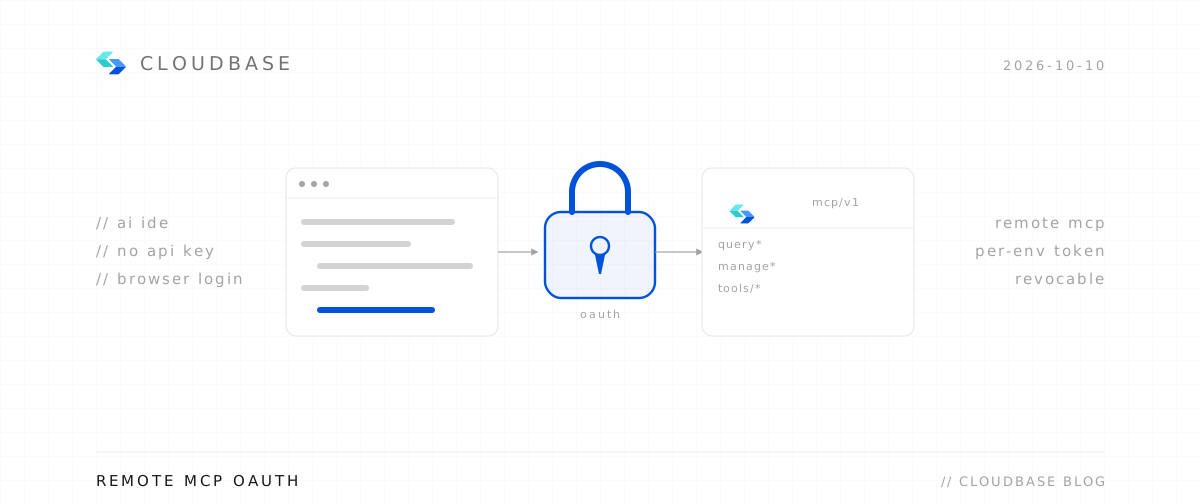
Remote needs only a URL — your client walks you through browser authorization, so no keys land in config files.
Configure your AI tool to connect with CloudBase capabilities. Supports local and remote connection. See connection modes.
Step 1: Install / Configure CloudBase
Install in one click:
 Add to Cursor
Or manual configuration:
Or add this configuration to .cursor/mcp.json:
1{2 "mcpServers": {3 "cloudbase": {4 "type": "http",5 "url": "https://tcb-api.cloud.tencent.com/mcp/v1"6 }7 }8}Step 2: Chat with AI
Enter the following in your AI chat in order:
Read https://docs.cloudbase.net/skill.md and tell me what it can doUse CloudBase Skills: 帮我做小程序 SEO:优化页面让微信搜索能收录(小程序搜索优化指南)| IDE | Notes |
|---|---|
| Claude Code | ~/.claude |
| Cursor | ~/.cursor |
| Codex | ~/.codex |
| Grok Build / Kimi Code / GitHub Copilot CLI | all supported |
| VS Code | Agent plugins (Preview) |
There's also an optional Sites plugin (npx plugins add TencentCloudBase/cloudbase-sites-plugin -y --scope user).
Full docs: CloudBase AI Plugins.
Next time you deploy, try leaving the console closed.